

User-delegated access vs. client access
You can configure separate application API access policies for user-delegated access and client (machine-to-machine) access:- Client access: used for machine-to-machine access, which corresponds to the Client Credentials Flow.
- User-delegated access: used for all access flows that generate an access token associated with an end-user, allowing the application to access an API on the user’s behalf. User-delegated access flows do not include the Client Credentials Flow. To learn more about user-delegated access flows, read Authentication and Authorization Flows.
Application API access policies
The application API access policies are:| Policy | Description | Access Flow |
|---|---|---|
Allow | When configured for an API, any application in your tenant can get an access token to the API. No specific grant is required. | The default for user-delegated access when you create an API. You can only configure allow_all for user-delegated access. |
Allow via client-grant | When configured for an API, only applications with a client grant defined can get an access token for the API. The client grant establishes the maximum permissions an application can request from the API. To learn more about how to create and manage client grants, read Application Access to APIs: Client Grants. | The default for the Client Credentials Flow when you create an API. |
Deny | When configured for an API, no application can get an access token to the API, regardless of any other settings or grants. Access is completely restricted. | You can configure deny_all for both user and client access. |
Allow via client-grant, which follows a least privilege principle approach. To learn more, read Application Access to APIs: Client Grants.
When you set the application access policy for an API to Allow via client-grant, you must explicitly provide the required scopes as part of the token request. This does not apply to refresh token requests, where if you omit the scopes, the authorization server assumes the application wants all the scopes it was granted in the original access token. As a result, the authorization server returns an access token with the same scopes originally granted by the resource owner.
Configure API application access policy
You can configure an API’s application access policy using the Auth0 Dashboard or the Management API.- Auth0 Dashboard
- Management API
To configure an API’s application access policy:
- Navigate to Dashboard > Applications > APIs and select your API.
- Select the Application Access tab.
- Select the Application Access Policy to configure the user and client access.
- Configure the User-Delegated Access policy to Allow, Allow via client-grant, or Deny.
- Allow: Applications are allowed to access the API on the user’s behalf.
- Allow via client-grant: Applications must have a client grant to access the API on the user’s behalf.
- Deny: Applications are denied access to the API on the user’s behalf.
- Configure the Client Access policy to Allow via client-grant or Deny.
- Allow via client-grant: Machine-to-machine applications are allowed to access this API as long as they have the corresponding client grant.
- Deny: Restricts machine-to-machine access to this API.
- Configure the User-Delegated Access policy to Allow, Allow via client-grant, or Deny.
- Select Save to save the Application Access Policy.
- When Allow via client-grant is the policy configured for the API, select Edit to authorize User-Delegated Access, Client Access, or both for each individual Application.
- Configure the User-Delegated Access Authorization to Unauthorized, Authorized, or All.
- Unauthorized: No permission allowed.
- Authorized: Select desired permissions.
- All: Include all existing and future permissions.
- Configure the Client Credential Access Authorization to Unauthorized, Authorized, or All.
- Unauthorized: No permission allowed.
- Authorized: Select desired permissions.
- All: Include all existing and future permissions.
- Configure the User-Delegated Access Authorization to Unauthorized, Authorized, or All.
- Select Save to save the Application Access settings.
API access policies and third-party applications
Third-party applications always require an explicit client grant to access any API, regardless of the API’s configured access policy.| API access policy | First-party applications | Third-party applications |
|---|---|---|
| Allow All | Access granted | Requires client grant |
| Require Client Grant | Requires client grant | Requires client grant |
| Deny | Access denied | Access denied |
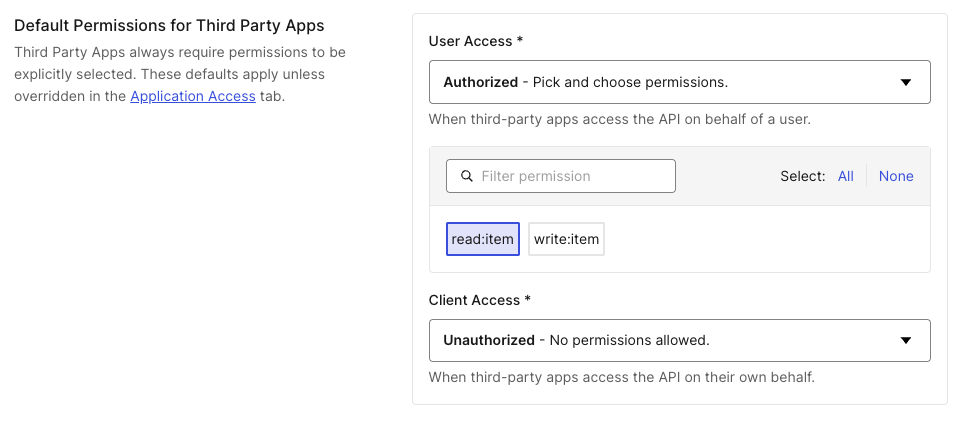
- Navigate to Applications > APIs and select the API.
- Under the Settings tab, navigate to Default Permissions for Third Party Apps.
- Select Authorized for User-delegated Access or Client Access, then select the scopes to grant.
- Select Save.
Some existing tenants may have third-party applications with different access policy behavior. To learn more, read Permissive Mode for Third-Party Applications.